
Step-by-step guide
How to Resize an Image Without Distorting It
Updated October 9, 2026
An image distorts when its width and height change by different amounts. To avoid it, keep the proportions: in FileICU's Resize Image, choose Fit inside to make the image fit a box without changing its shape, or Crop to fill to get an exact size by trimming the edges instead of stretching.
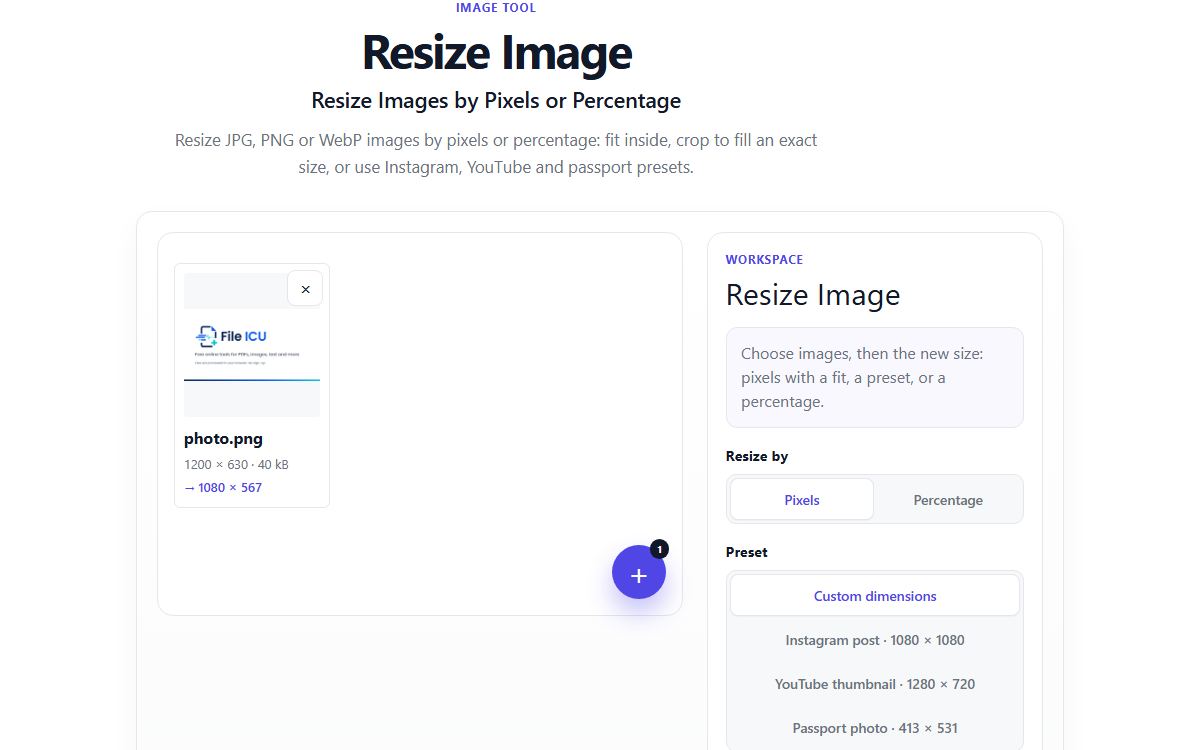
How to do it with Resize Image
- Open Resize Image and choose up to ten JPG, PNG or WebP images.
- Choose Pixels and enter the width and height you need, or choose Percentage to scale by a share of the original.
- Choose Fit inside to keep the whole picture, or Crop to fill when the result must be exactly that size.
- Check the new size shown for each image.
- Resize and download one image, or a ZIP for several.
Fit inside, Crop to fill and Stretch
Fit inside keeps the proportions and makes the image as large as possible inside your width and height. One side may come out smaller than you asked for.
Crop to fill gives exactly the size you asked for: the image is scaled to cover the box, the middle is kept and the edges that do not fit are trimmed. Stretch also gives the exact size, but changes the proportions, which is what makes faces look wide or tall.
Example: a 4000 × 3000 photo for a 1080 × 1080 post
The photo is 4:3 and the post is square. Fit inside gives 1080 × 810: the whole photo, smaller, and not square. Crop to fill first scales the photo to 1440 × 1080, then trims 180 pixels from the left and right, giving exactly 1080 × 1080 with the centre kept. Stretch squeezes the photo to 1080 × 1080, and everything looks narrower.
For the square post, Crop to fill is the right choice, as long as nothing important is near the left or right edge.
Presets and percentages
The Instagram post (1080 × 1080), YouTube thumbnail (1280 × 720) and passport photo (413 × 531) presets always crop to fill, so you get exactly that size. Percentage scales both sides equally, from 1% to 500%, so it never distorts.
Common problems
- The result is smaller than the size I entered.
- Fit inside keeps the proportions, so one side ends up smaller when the shapes differ. Use Crop to fill for an exact size.
- Part of my picture was cut off.
- Crop to fill trims the edges that do not fit. Use Fit inside to keep everything, or crop the image yourself first with Crop Image to choose what stays.
- My enlarged image looks soft.
- Enlarging cannot add detail that was not in the original. Start from the largest version of the image you have.
Tools for this task
- ImageOptimize
Resize Image
Resize multiple images by pixels or percent, lock proportions, or choose a common size preset.
- ImageEdit
Crop Image
Crop a photo with a movable selection, aspect presets, and exact output dimensions.
- ImageOptimize
Compress Image
Compress a batch of photos, choose output quality and format, and optionally limit image width.
- ImageEdit
Rotate and Flip Image
Rotate photos or flip them horizontally and vertically with a live preview.