
Step-by-step guide
How to Extract Text From a PDF
Updated October 9, 2026
If a PDF was typed, its text is already inside and can be read exactly and instantly. If it was scanned, each page is a picture, and the text has to be recognized with OCR (optical character recognition). FileICU's PDF to Text does both: it reads typed pages directly and runs OCR only on scanned pages, in English, French, Spanish, German, Arabic and Urdu.
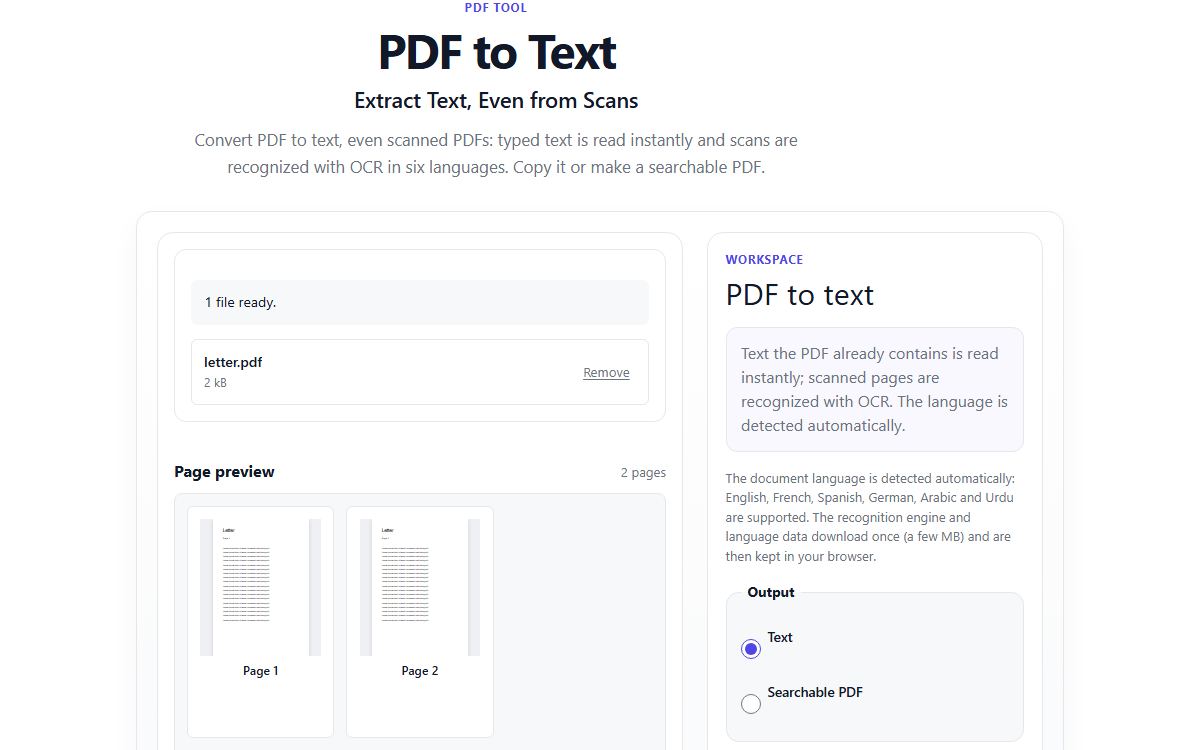
How to do it with PDF to Text
- Open PDF to Text and choose your PDF, typed or scanned, up to 25 MB.
- Choose plain text to copy or download the words, or a searchable PDF to keep the page images with a hidden text layer.
- Select Extract text. Pages are handled one at a time, and the language of scanned pages is detected automatically.
- Copy the text, download it as a .txt file, or download the searchable PDF.
- For scanned pages, read the result once: OCR can misread characters.
Typed PDF or scan: how to tell
Open the PDF and try to select a word. If the word highlights, the text is real text and will be extracted exactly. If the whole page highlights like a photo, or nothing happens, the page is an image and needs OCR.
Many files mix both, such as a typed report with a scanned signature page. PDF to Text handles each page the right way.
Example: a scanned letter
A two-page letter scanned at the office arrives as a PDF of two images. Choosing plain text gives you the letter's words, ready to paste into an email or document. Choosing a searchable PDF gives a file that looks exactly like the scan, but you can now search it for a name or copy a paragraph.
The first time you recognize a language, its OCR data is downloaded once from this website, about 0.7 to 3 MB, plus about 1.5 MB for the engine. Your PDF is never part of that download.
Getting better OCR results
OCR works best on clean, straight, high-resolution print. Faint copies, skewed photos of pages, small text and decorative fonts all reduce accuracy, and handwriting is not supported.
- Scan at 300 DPI if you can, rather than photographing the page.
- Keep the page straight and evenly lit.
- Check names, numbers and amounts by eye after recognition.
Common problems
- The extracted text comes out in the wrong order.
- Multi-column layouts and text boxes can be read in a different order than you would read them. Copy the parts you need, or check them against the original.
- Some characters are wrong after OCR.
- The scan is probably low resolution or unclear. Rescan the page more clearly, or correct the few wrong characters by hand.
- Arabic or Urdu text is not recognized well.
- Clean Naskh print works best. Nastaliq, used in most printed Urdu, small text and low-contrast scans give less accurate results.
- It is slow on my phone.
- OCR uses a lot of memory and processing. Shorter documents, or a computer for long scans, work better.
Tools for this task
- PDFConvert from PDF
PDF to Text
Extract text from any PDF, scanned pages included, then copy it, download it or create a searchable PDF.
- ImageExtract
Image to Text
Extract text from photos, screenshots and scanned images with OCR, then copy or download it.
- TextCount
Word Counter
Count words, characters, sentences, and estimated reading time as you write.
- PDFConvert to PDF
Text to PDF
Format typed text as a PDF with adjustable font size, page size, and margins.