
Step-by-step guide
How to Merge PDF Files Without Losing Page Order
Updated October 9, 2026
The order of the files you merge is the order of the pages you get. Put the files in sequence before you merge, and the pages inside each file keep their own order. With FileICU's Merge PDF you set that sequence by dragging the files in a list, then download one PDF built in your browser.
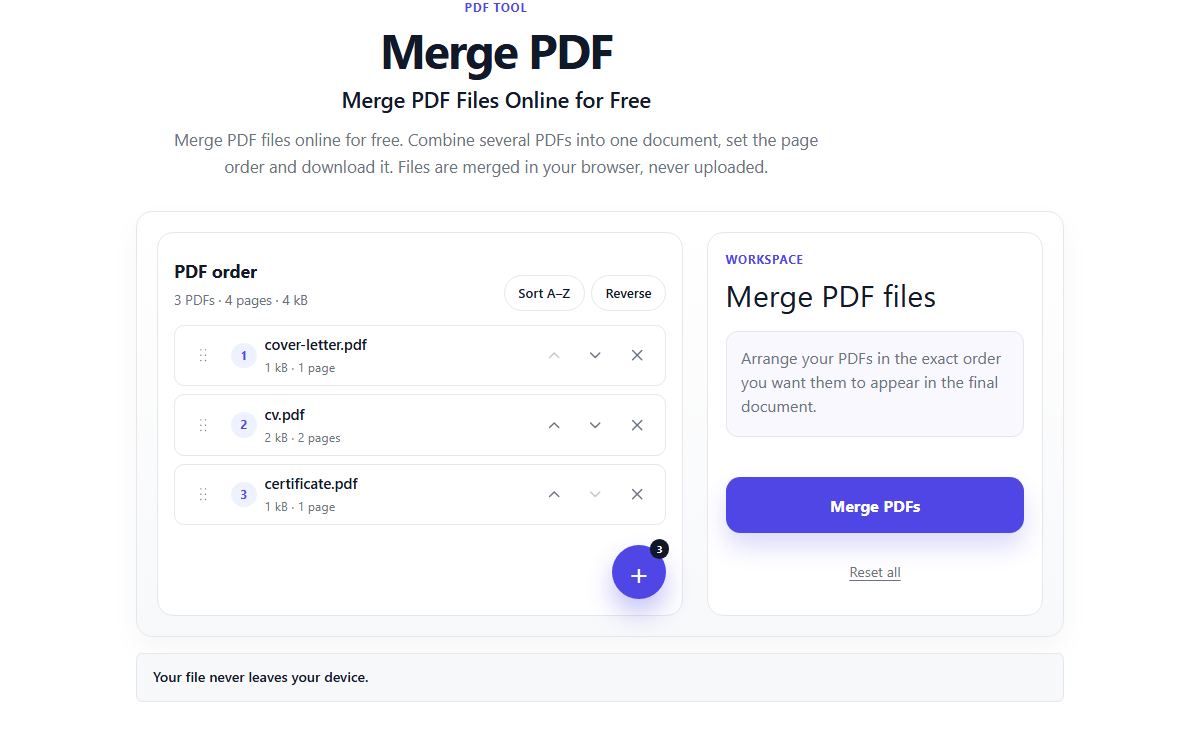
How to do it with Merge PDF
- Open Merge PDF and choose two or more PDFs, up to 10 files of 25 MB each.
- Check the list: the file at the top becomes the first pages of the merged PDF.
- Drag a file to move it, or use its up and down arrows. Remove any file you do not need.
- Select Merge PDFs. The result says how many pages the new document has.
- Download the PDF and scroll through it once to confirm the order before you send it.
Why page order goes wrong
Most mix-ups happen before the merge. Files picked from a folder arrive in whatever order the device lists them, often alphabetical, so "Invoice 10" lands before "Invoice 2". Scans named by the scanner, such as scan0001 and scan0002, are in time order, not document order.
A merge tool never reorders pages inside a file. If page 3 of a file is in the wrong place, that file was already wrong, and the fix is to reorder its pages separately.
- Name files with leading zeros (01, 02 … 10) so they sort correctly.
- Add files in the order you want, or fix the order in the list before merging.
- Check the page count: it should be the total of all files.
Example: putting a job application together
Say you have a cover letter (1 page), a CV (2 pages) and two certificates (1 page each). Add them, then arrange the list as cover letter, CV, certificate 1, certificate 2. The merged PDF has 5 pages: page 1 is the letter, pages 2 and 3 are the CV, and pages 4 and 5 are the certificates.
If the employer wants the CV first, drag it to the top and merge again. Your original files never change, so you can merge as many versions as you like.
What changes in the merged file
Pages are copied exactly as they are, at their original size and orientation, without compressing text or images again. That is also why the merged file is roughly as large as all the files together.
Bookmarks from the original files are not carried over, and interactive form fields may stop working, so fill in forms before merging.
Common problems
- One file is upside down or sideways in the result.
- That page was already rotated in its own file. Merge first, then turn the page with Rotate PDF, which saves only the page's orientation.
- I only need some pages from each file.
- Merge PDF combines whole files. Take the pages you need with Extract Pages first, or merge everything and delete or reorder pages in the PDF Editor's Pages tool.
- A file asks for a password.
- Enter it when asked. The file is unlocked on your device, the password is never saved, and the merged PDF has no password.
- The merged PDF is too big to email.
- Run it through Compress PDF. Its Recommended level shrinks photos and scans while text stays sharp.
Tools for this task
- PDFOrganize
Merge PDF
Combine multiple PDF files into a single document.
- PDFOrganize
Organize PDF
Reorder, rotate, or remove pages in a PDF.
- PDFOrganize
Split PDF
Separate selected pages or divide a PDF into smaller files.
- PDFOptimize
Compress PDF
Shrink a PDF by optimizing its photos while text stays sharp, or turn pages into images for the smallest file.