
Step-by-step guide
JPG vs PNG vs WebP: Which Format Should You Use?
Updated October 9, 2026
Use JPG for photos that must open anywhere, PNG for screenshots, logos and anything with transparency or sharp text, and WebP for images on websites, where it gives the smallest files. If you have the wrong one, FileICU's Image Converter changes any JPG, PNG, WebP, AVIF or HEIC image into JPG, PNG or WebP in your browser.
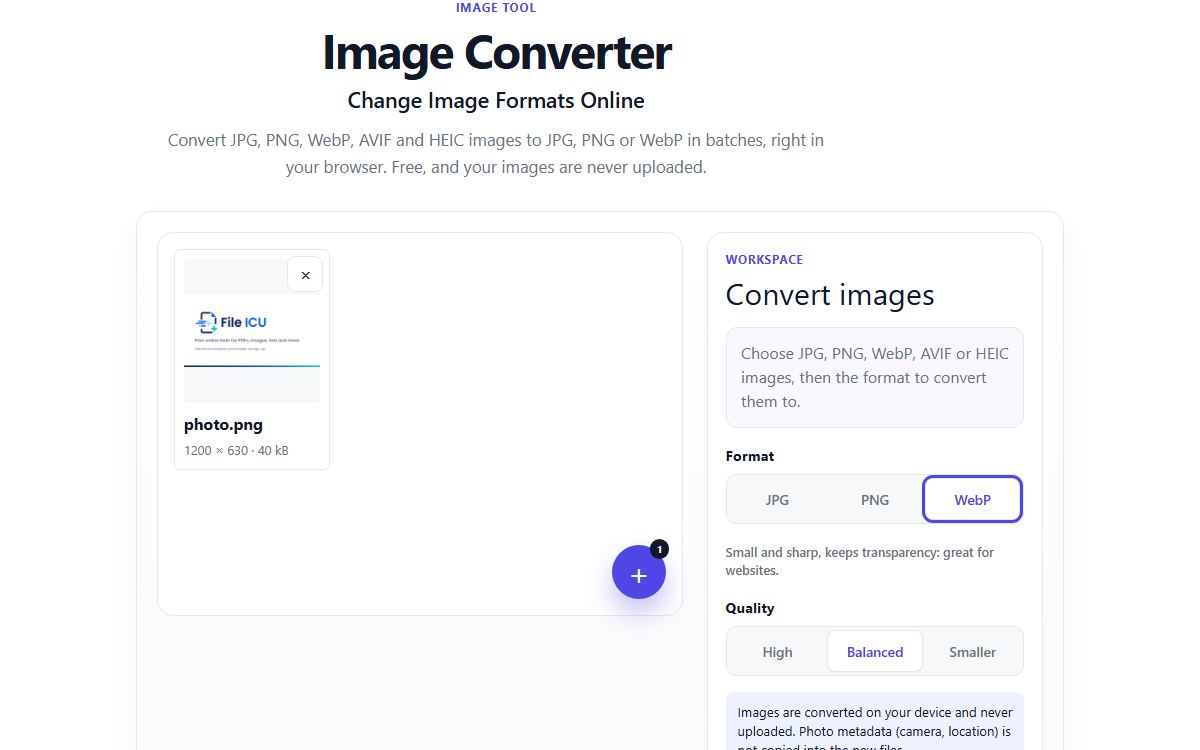
How to do it with Image Converter
- Open Image Converter and choose your images, including HEIC photos from an iPhone.
- Pick the output format: JPG, PNG or WebP.
- For JPG and WebP, choose a quality: High, Balanced or Smaller. PNG is always lossless.
- Convert, then download one image or a ZIP for several.
The three formats at a glance
JPG compresses photos well by discarding detail you rarely notice. It has no transparency, and repeated saving slowly lowers quality. PNG is lossless: every pixel is kept, which keeps text and edges crisp and supports transparency, but photos become large. WebP can work either way, gives smaller files than both at similar quality, and supports transparency.
- Photo to share or upload to a form: JPG.
- Screenshot, chart, logo or icon: PNG.
- Image for your own website: WebP.
- Anything with a transparent background: PNG or WebP.
Example: a screenshot with text
Saved as JPG, a screenshot of a spreadsheet shows faint smudges around the letters, because JPG is designed for smooth photos, not sharp edges. Saved as PNG, the text stays perfectly sharp. For a photo of a sunset it is the opposite: PNG makes a large file and JPG looks the same at a fraction of the size.
Compatibility
JPG and PNG open in every program and website. WebP is supported by all current browsers, but some older software and some upload forms still reject it, so convert to JPG when a site refuses your WebP image.
When a transparent PNG or WebP is converted to JPG, transparent areas become white, because JPG cannot store transparency.
Common problems
- My logo got a white background.
- It was converted to JPG, which has no transparency. Convert the original to PNG or WebP instead.
- A site will not accept my WebP or HEIC image.
- Convert it to JPG, which every site accepts.
- My PNG photo is huge.
- PNG keeps every pixel. Convert the photo to JPG or WebP, or use Compress Image, for a far smaller file.
Tools for this task
- ImageConvert
Image Converter
Convert images between PNG, JPG, WebP, and AVIF when supported by your browser.
- ImageOptimize
Compress Image
Compress a batch of photos, choose output quality and format, and optionally limit image width.
- ImageConvert
HEIC to JPG
Convert HEIC and HEIF photos to JPG in a local browser worker.
- PDFConvert to PDF
Image to PDF
Turn JPG, PNG, WebP, HEIC and other images into one PDF.