
Step-by-step guide
How to Reduce an Image to 100 KB
Updated October 9, 2026
To get an image under 100 KB, make it smaller in pixels first, then compress it. Most photos from a phone are 3 to 5 MB because they have about 12 million pixels. In FileICU's Compress Image, choose Strong, set the largest side to 1280 pixels and pick JPG or WebP, then check the new size it shows.
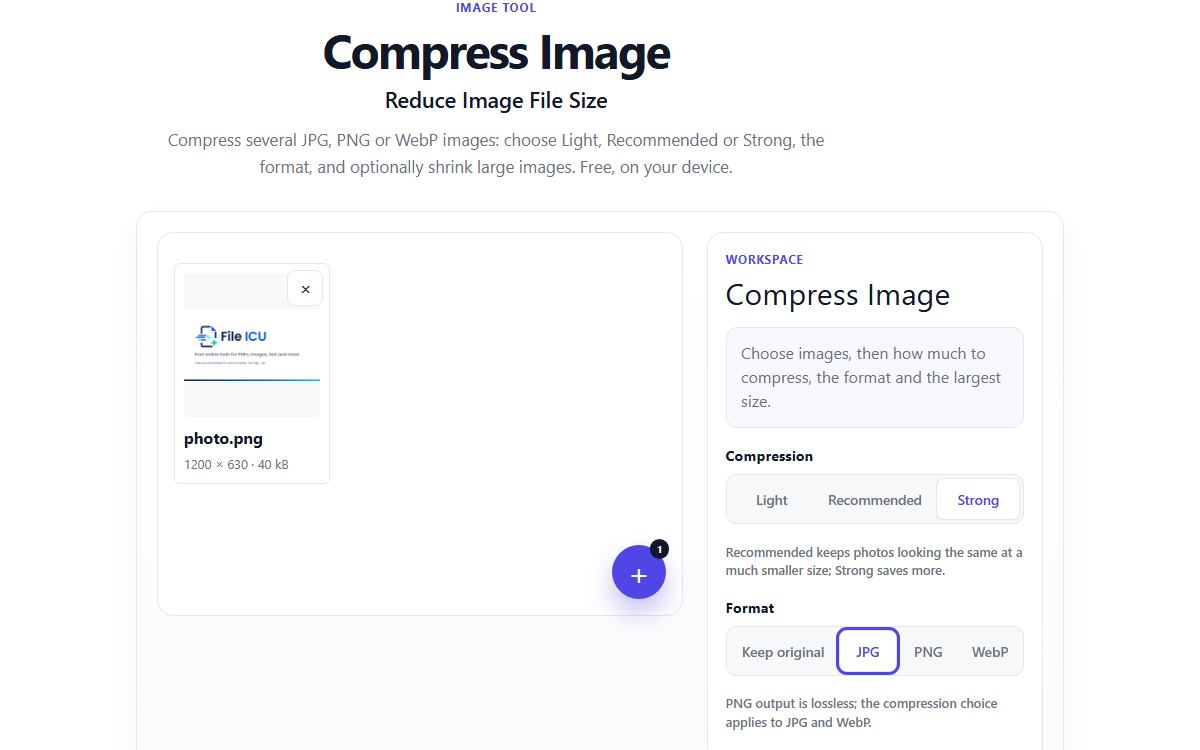
How to do it with Compress Image
- Open Compress Image and choose your JPG, PNG or WebP image.
- Choose Strong under Compression.
- Set Largest side to 1280 px.
- Choose JPG or WebP under Format. PNG is lossless and rarely reaches 100 KB for a photo.
- Compress, then read the new size shown for the image.
- If it is still over 100 KB, try WebP, or first make the image smaller with Resize Image, for example 800 pixels wide.
Why pixels matter more than quality
File size grows with the number of pixels. A phone photo of 4032 × 3024 pixels has about 12.2 million of them. The same photo at 1280 × 960 has about 1.2 million, a tenth as many, before any compression is applied.
So reducing the pixel size does most of the work, and compression finishes the job. Forms that ask for 100 KB rarely need more than about 1200 pixels across anyway.
Example: a passport-style photo for an online form
A form asks for a JPG photo under 100 KB. Start with Resize Image and its passport preset, which gives exactly 413 × 531 pixels. Then open Compress Image, keep JPG, and choose Recommended. A picture that small usually lands well under 100 KB while still looking sharp; if it does not, choose Strong.
Which format to pick
JPG is accepted everywhere and is the right choice for forms. WebP gives smaller files at the same quality and suits websites, but some forms and older programs do not accept it. Keep PNG for screenshots and graphics, not for photos you need to make small.
Common problems
- The result says "Already small" and the size did not change.
- A smaller version in that format was not possible, so you got the original back. Choose a smaller largest side, or another format.
- The image looks blocky after compression.
- Strong compression removes fine detail. Use Recommended with a smaller largest side instead: fewer pixels at better quality usually look better than many pixels at low quality.
- The form rejects my WebP file.
- Choose JPG under Format. It is the most widely accepted image type.
- There is no exact 100 KB setting.
- That is right: Compress Image does not aim for a target size. Adjust the settings and check the size shown, which takes one or two tries.
Tools for this task
- ImageOptimize
Compress Image
Compress a batch of photos, choose output quality and format, and optionally limit image width.
- ImageOptimize
Resize Image
Resize multiple images by pixels or percent, lock proportions, or choose a common size preset.
- ImageConvert
Image Converter
Convert images between PNG, JPG, WebP, and AVIF when supported by your browser.
- ImageEdit
Crop Image
Crop a photo with a movable selection, aspect presets, and exact output dimensions.