
Step-by-step guide
How to Compress a PDF for Email
Updated October 9, 2026
To email a large PDF, compress it until it is well under your email service's attachment limit, which is 25 MB in Gmail and 20 MB in Outlook.com. FileICU's Compress PDF shrinks the images inside the PDF and leaves text sharp. Start with the Recommended level and only go stronger if the file is still too large.
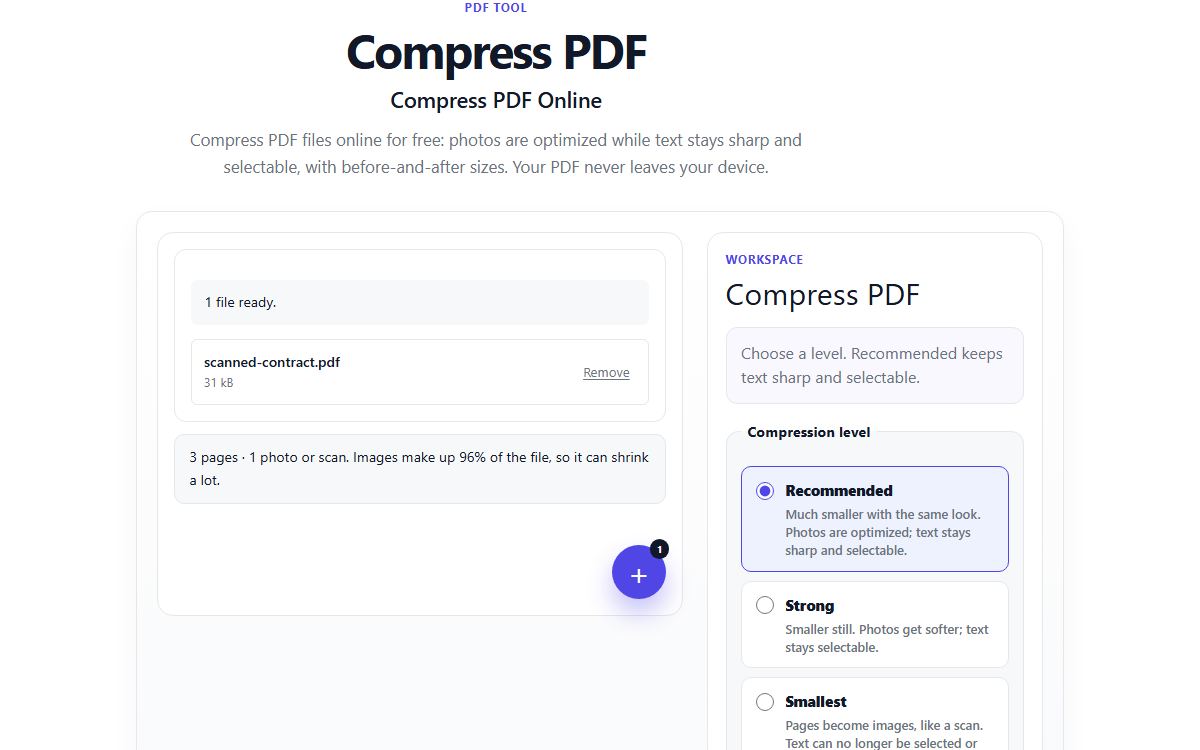
How to do it with Compress PDF
- Open Compress PDF and choose your PDF, up to 25 MB.
- Look at the summary: how many pages and images the PDF has, and roughly how much it can shrink.
- Keep Recommended for documents with photos or scans. Choose Strong if the file must be smaller and photo detail matters less.
- Select Compress PDF and compare the before and after sizes.
- Download the smaller file and attach it to your email.
Which level to choose
Recommended re-encodes photos and scanned pages at a sensible size and quality and does not touch text, fonts or drawings, so the document looks the same and stays searchable.
Strong saves more by reducing photo quality further. Smallest turns every page into an image, like a scan: it suits scanned documents, but text can no longer be selected or searched.
Why some PDFs barely shrink
A PDF made from a word processor is mostly text and fonts, which are already compact. A 300 KB report will not get much smaller, and it does not need to.
The big savings come from photos and scans. A 12-page scanned contract of 18 MB, where every page is a large image, is the kind of file compression helps most. If no smaller version is possible, you get your original back, never a larger file.
Email limits in practice
Attachments are encoded for sending, which makes them about a third larger on the way, so a file close to the limit can still bounce. Aim for comfortably less than the limit, for example under 15 MB for a 20 MB limit.
Work mail servers often allow less than personal accounts. If a PDF is still too large after Strong, split it into parts with Split PDF and send them in separate emails.
Common problems
- The compressed file is the same size as before.
- The PDF has little to compress, usually because it is mostly text. That is normal; such files are already small.
- The text in my PDF became blurry.
- You used Smallest, which turns pages into images. Compress the original again with Recommended or Strong, which keep text as text.
- My PDF is over 25 MB.
- That is above the tool's limit. Split it with Split PDF, compress each part, and send the parts separately.
- The PDF is password-protected.
- Enter the password when asked. It is used only on your device and the compressed PDF has no password.
Tools for this task
- PDFOptimize
Compress PDF
Shrink a PDF by optimizing its photos while text stays sharp, or turn pages into images for the smallest file.
- PDFOrganize
Split PDF
Separate selected pages or divide a PDF into smaller files.
- PDFConvert from PDF
PDF to Image
Turn PDF pages into JPG, PNG or WebP images.
- PDFOrganize
Merge PDF
Combine multiple PDF files into a single document.